
Session 2 · 90 minutes
Make a 20-second VR reel.
Turn real phone photos of Another World VR at The Square, Camberley, into a short promo for its multiplayer free-roam VR. Bring Jamie and the skills you used in Session 1.
Build the reel in four steps
Open Claude Code. Get the three skills from Session 1.
Check the Higgsfield connection in Claude Code
In Claude Code, enter /mcp, select higgsfield and authenticate if prompted. If it’s missing, run this from the project folder to add it, then return to /mcp.
claude mcp add --transport http --scope local higgsfield https://mcp.higgsfield.ai/mcpAsk Claude to confirm one image upload and return its media ID before you generate.
To load the Session 1 skills in Claude Code, extract each ZIP’s named folder into .claude/skills/.
If your Claude Code setup has no Higgsfield MCP, use the official Higgsfield CLI setup. Claude Code can use that CLI to send the same local photos.
-
Pick a hook 15 min
Use Content Engine to generate three ideas around the photos you plan to take. Choose one hook you can say in a sentence. We’ll use The group chat finally picked something.
Prompt to copy
Use Content Engine. Give me three ideas for a 20-second Instagram Reel for Another World VR at The Square, Camberley. The audience is local friends making a plan. The confirmed offer is multiplayer free-roam VR. I will take real photos of the entrance, arena, and headset in this workshop, plus Jamie, our AI presenter from Session 1. Give each idea one spoken hook, four visual beats, and a booking line. Rank the ideas by how well they use the planned photos.
-
Gather three phone photos 20 min
Use three portrait photos from your phone. Take them during the session if you’re on site, or use photos you brought with you. Leave room for captions.
- Entrance. Capture the sign and doorway.
- Arena. Go wide to show the play space. Use a short phone clip if the venue has cleared it.
- Headset. Get a close-up of the real headset and controllers.
Check with the venue before filming and get permission from anyone identifiable. Save the photos as JPG or PNG, then drag them into Claude Code or give it their local file paths.
Prompt to copy
Review my attached phone photos of the entrance, arena, and headset. Tell me whether each photo can be cropped to 9:16 and still show the important detail. Flag blurry shots or text I should keep readable, and tell me what to retake. Use the photos as the visual source.
-
Attach your photos and bring back Jamie 35 min
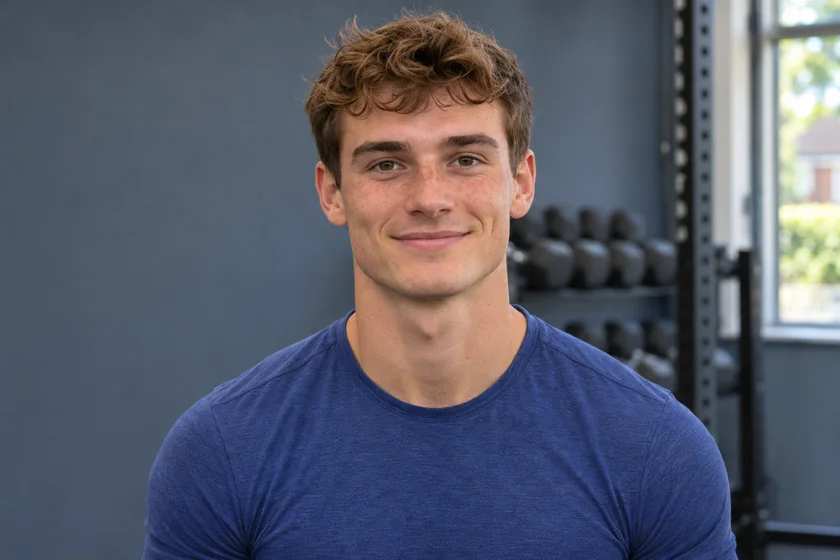
Use Character Sheet & Voice and UGC Influencer Video. Give Claude Code Jamie’s portrait and the phone photos. Ask it to send the originals through Higgsfield MCP and match each confirmed image to a shot. For a quick edit, use Jamie’s voice over the real photos.
Prompt to copy
Use Character Sheet & Voice and UGC Influencer Video. Read the original files I attached in Claude Code. Use Higgsfield MCP to upload the three phone JPG or PNG files and Jamie’s WebP portrait, confirm the uploads, and use the returned media IDs as references. Match the entrance photo to the hook, the headset photo to the close-up and the arena photo to the payoff. Use Jamie’s portrait and his warm southern English voice from Session 1. His line is “The group chat finally picked something. VR in Camberley.” Show the image-to-shot matches and check the credit cost before generation. Keep fixtures, signs and equipment as photographed. If a generated shot changes the venue details, use the original photo with a gentle push-in in the edit.
-
Edit, check and export 20 min
Put the shots in order on a 9:16 timeline. Caption Jamie’s line, label any AI-generated presenter shot, and give the booking end card four seconds. Check the reel on a phone and export at 1080 × 1920. Put the official booking link in the account bio.
The group chat finally picked something
Use your own venue photos to follow this 20-second edit.
- 0–4 sec
Open on the entrance
Use the real entrance photo. Jamie says, “The group chat finally picked something. VR in Camberley.” His voice can play over the photo.
- 4–8 sec
Show the headset
Use your real headset photo. A gentle push-in gives the still movement. Keep the headset and controllers in view.
- 8–16 sec
Show the arena
Use your real arena photos or a cleared phone clip. Add “Multiplayer free-roam VR” over the shot.
- 16–20 sec
Booking end card
Show “Another World VR”, “The Square, Camberley” and “Book your VR session”. Keep the text visible for the full four seconds.
Venue and offer details checked against the official Camberley website.